Installing the Clio integration
Step 1: Access the marketplace
- Click the Apps menu item on the left sidebar
- Click Marketplace
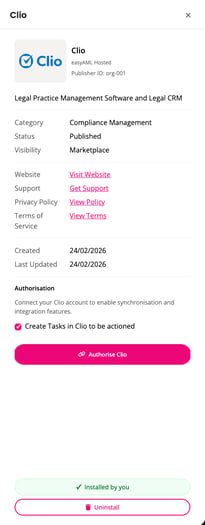
- Click the Clio integration (click here to open directly)
Step 2: Configure integration settings
- "Create Tasks in Clio to be actioned" - Tick this checkbox to enable automatic task creation in Clio. When easyAML identifies an action that needs to be taken (such as completing a verification or reviewing a risk assessment), it will create a corresponding task in your Clio account.
Step 3: Authorise the connection
- Click the "Authorise Clio" button
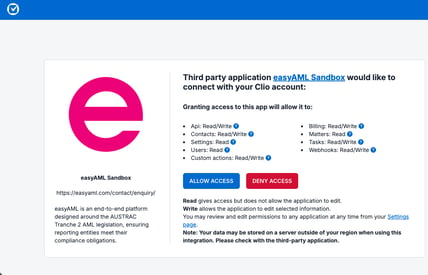
- You'll be redirected to Clio's authorisation screen - click Allow Access to grant easyAML the necessary permissions
- If you're not already logged into Clio, you'll be prompted to log in first
Important: The integration does not automatically pull all existing matters into easyAML. However, once a record exists in both easyAML and Clio, the integration will keep that record synchronised with updates from Clio.
Removing the integration
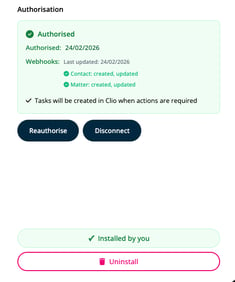
If you need to disconnect the Clio integration at any time, return to the Clio integration page and click the Disconnectbutton. This will revoke easyAML's access to your Clio account.
Importing individuals from clio
Once your integration is connected, you can import individual contacts from Clio into easyAML for identity verification and AML screening.
Step 1: Navigate to import
- Click the Entities menu item on the left sidebar
- Click Import Individuals
Step 2: Search and select
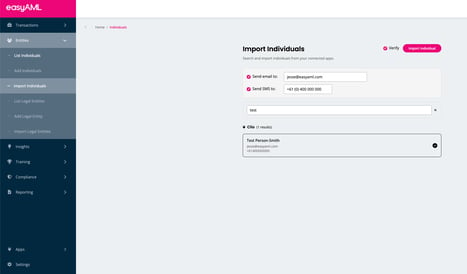
- Search for the individual you want to import from Clio
- Click the circle next to the individual's name to select them
Step 3: Verification options
- Verify checkbox - If you want to send a remote verification request to the individual at the same time as importing, tick the Verify checkbox. This step is optional and the verification can also be performed later from within easyAML.
Step 4: Import
- Click Import Individual
- Once imported, you'll see the individual and all their relevant data populated in easyAML
Keeping records in sync
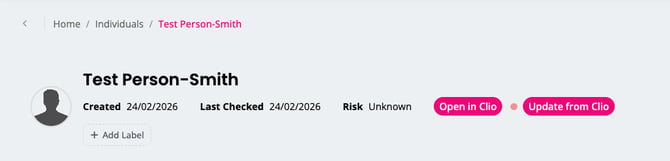
Once an individual has been imported, easyAML will detect when their information has been updated in Clio. When viewing the individual's record, you'll see an "Update from Clio" button - click this to fetch the latest information from Clio and update the record in easyAML.
Importing legal entities from clio
Importing legal entities (such as companies or trusts) from Clio involves a few additional steps to ensure easyAML can identify the entity's structure and any Ultimate Beneficial Owners (UBOs).
Step 1: Navigate to import
- Click the Entities menu item on the left sidebar
- Click Import Legal Entities
Step 2: Search and select
- Search for the legal entity you want to import from Clio
- Click the circle next to the entity's name to select it
- Click Import Legal Entity
Step 3: Provide entity details
After selecting the entity, you'll need to provide additional information:
- Select the entity type - This defaults to "Company" but can be changed to match the correct entity structure
- On the next screen, enter any additional information about the entity, including the company number (e.g., ACN or ABN)
- Click Search Companies
Step 4: UBO identification
easyAML will use the company number to look up the entity's shareholders and determine any Ultimate Beneficial Owners for the company. The entity will not be created in easyAML until this search has been completed - this ensures your compliance records include the full ownership structure from the outset.
Importing matters from clio
Importing matters from Clio brings across the matter details along with any associated individuals or legal entities, making it easy to manage compliance for an entire transaction.
Step 1: Navigate to import
- Click the Transactions menu item on the left sidebar
- Click Import Transactions
Step 2: Search and select
- Search for the matter name you want to import
- Click the circle next to the matching matter name
- Click Import Transaction
Step 3: Review imported data
Once imported, you'll see all information from the Clio matter in easyAML. This includes any individuals or legal entities associated with the matter - they will be automatically imported as well.
Clio task creation
If you enabled the "Create Tasks in Clio to be actioned" setting during setup, easyAML will automatically create tasks in your Clio account when compliance actions are required for an imported matter, individual, or entity.
How it works
- When easyAML identifies a required action (such as completing a verification or reviewing a flagged entity), it creates a task in Clio
- In Clio, click "Tasks" on the left-hand menu bar
- Click the link in the Name and Description column to view the task details
- The task Description will contain a link to easyAML where you can complete the required action
Note: You will need to copy and paste this link into your browser to access the task directly in easyAML.
Install and authorise the Clio app from the easyAML Marketplace. For how the Apps page works, see Working with Apps in easyAML.