Step 1: access user management
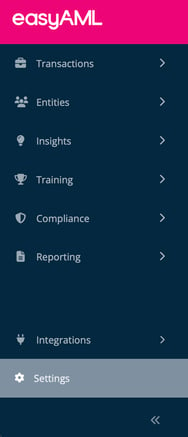
Navigate to Settings:
- Click the Settings menu item on the left sidebar
- Tip: If your menu is collapsed (showing icons only), click the Cog icon ⚙️
- Click "Users" from on the left menu
- You'll see a list of current users, including your account
Step 2: fill in required details
-
Click the "Invite User" button (top-right of the screen)
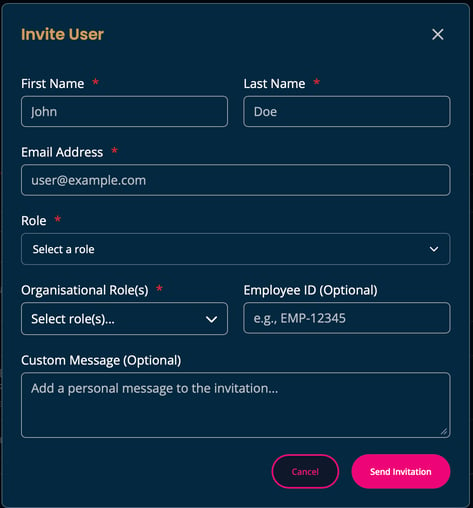
- A popup window will appear with the invitation form
Fill in required information:
- First Name (required) - Their given name
- Last Name (required) - Their surname
- Email Address (required) - Their work email (they'll use this to log in)
- Role (required) - Select from dropdown based on their responsibilities
- Custom Message (optional) - Add a personal note explaining why they're receiving this invite and what's expected
Example custom message:
"Hi Kim, I'm adding you to our easyAML system so you can complete your AML training. Please sign up today and complete the 'Front Desk Staff' training module before Monday. Let me know if you have any questions. - Sally"
Step 3: send the invitation
-
Review all details are correct
-
Click "Send Invitation" button
What happens next:
- Their account is immediately created in easyAML
- They receive an email with:
- Welcome message
- Login link
- Their username (their email address)
- A temporary password that will be reset when they login
- Your custom message (if you added one)
First-time setup:
- They will click the link in the email
- Set their own secure password
- Log in and see their personalized dashboard
- Required training modules appear based on their role
Step 4: follow up
Check they've activated:
- Most people activate within 24 hours
- If they don't receive the email, check their spam folder
Who needs an account?
You're legally required to train all staff who deal with clients or handle transactions. Under AML/CTF laws, everyone from your receptionist to senior partners needs appropriate training based on their role. easyAML makes this simple by giving each team member their own account with role-specific training and responsibilities.
Troubleshooting
"I don't see the users menu item"
- Your account may not have permissions to invite other members
- Contact your Compliance Officer to determine if they can invite the person or;
- Upgrade your account permissions
"They didn't receive the invitation email"
- Check they gave you the correct email address
- Ask them to check spam/junk folders
- Resend the invitation from the Users page
- If still nothing, contact easyAML support
"They can't log in"
- Confirm they've activated their account (clicked link in email)
- Check they're using their email address as username
- Use "Forgot Password" to reset
- Verify their account isn't deactivated
"They can't access something they need"
- Check their role permissions
- You may need to upgrade their role
- Some features require higher-tier plans
"How do I remove someone quickly?"
- Users page → Find their name → Deactivate button
- Takes effect immediately
- They cannot log in anymore
- Records preserved for audit
"I typed in the wrong email how can I fix it?"
- Deactivate the existing account following the steps above
- Invite the person again with the correct email
- Emails are not updatable in the easyAML system
Ready to add your team? Head to Settings → Users → Invite User and get everyone compliant today.
Need help setting up roles? Contact easyAML support for guidance on your specific team structure.